iPhone 5s Screen Replacement
Duration: 45 minutes
Steps: 31 Steps
Get ready to swap out your iPhone 5s screen with this straightforward guide from Salvation Repair. This new screen comes pre-installed with the front-facing camera, earpiece speaker, and sensor cable, simplifying the process. Just carefully remove the old display and transfer the home button to the new one—this step is crucial for keeping Touch ID working properly. Keep your tools handy and follow each step—you'll have your phone looking fresh in no time!
Step 1

Before you dive in, make sure your iPhone battery is below 25%. A full battery can be a little too spicy if punctured – we don't want any unexpected fireworks!
- Power off your iPhone before diving into the disassembly process. Safety first, always!
- Grab your screwdriver and remove the two 3.9 mm Pentalobe screws located on either side of the Lightning connector.
Step 2


Pop on some safety glasses to keep your eyes safe from any flying glass bits that might come loose during the repair.
Keeping glass shards contained and maintaining the display's structure while prying and lifting makes the job safer and smoother.
- Got a cracked display glass? Keep it safe and prevent any cuts by carefully taping over the broken area.
- Cover the entire screen with strips of clear packing tape, overlapping as you go, until the whole face is smoothly covered.
Step 3


In the next few steps, you'll be gently lifting the display out of the phone body. The display consists of a glass screen and a plastic bezel, all held together with some metal clips. Take it slow and steady, and you'll have it out in no time!
- No matter what tool you're using, make sure you lift the entire display carefully.
- If the glass starts to separate from the plastic (like you can see in the first image), take a plastic opening tool and gently slide it between the plastic frame and the metal body of the phone. This will help you pop out the metal clips securing the case.
- When reassembling a phone with a separated display bezel, it might be a good idea to add a thin strip of adhesive between the bezel and the glass to ensure the phone stays snugly closed.
Step 4


- Pull the blue handle back to release the arms of the Anti-Clamp and get ready to work.
- Glide the arms over the left or right edge of your iPhone, whichever's more convenient.
- Position the suction cups near the bottom edge of your iPhone, just above the home button—place one on the front and one on the back for a secure grip.
- Gently squeeze the cups together to create a good suction on the area you're working on.
Next, we introduce the Anti-Clamp—an awesome tool we designed to make opening your device smoother. If you’re not using the Anti-Clamp, just skip ahead two steps for an alternative approach. Want to master the Anti-Clamp? Check out this handy guide. And if your iPhone’s surface is too slick for the Anti-Clamp to grip, no worries—use the included tape pad to add some extra grip and keep things secure. Keep going, you're doing great!
Step 5


- Grab the blue handle and give it a gentle push forward to lock those arms in place.
- Turn the handle clockwise all the way around until the cups start to stretch and do their thing.
- Carefully slide an opening pick under the screen once the Anti-Clamp creates a nice enough gap.
- Skip the next two steps and move on to the next part of the process.
Don't turn more than a quarter turn at a time and give it a few seconds between each gentle tweak. Trust the Anti-Clamp and letting time do its thing!
Keep the suction cups aligned as you work. If they start to shift, just loosen them a bit and straighten out the arms. And if the Anti-Clamp isn't giving you enough space, give the handle a quick quarter turn twist to open things up.
Step 6

Make sure the cup is fully seated on the screen so you get a secure, airtight seal—think of it as giving your device a snug hug!
- Don’t have an Anti-Clamp handy? No problem—grab a trusty single suction cup to give the front panel a gentle lift:
- Place a suction cup right above the home button on your screen, and you’re all set to continue.
Step 7
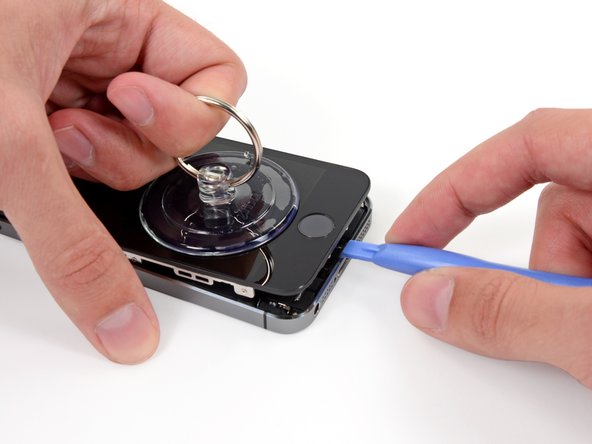
- Hold the iPhone steady with one hand and gently lift the suction cup to create a small gap at the home button end of the front panel from the back case. Then, use a plastic opening tool to carefully pry around the edges, working the rear case away from the front assembly as you continue lifting with the suction cup.
The front panel is held in place with clips and connected to the rest of the phone by a few ribbon cables. Your mission is to gently release those clips and open the phone just enough to unplug the cables. Take your time, apply steady pressure, and go slow to keep everything safe and sound.
Double-check that the suction cup is securely popped onto the front panel near the home button — a good grip makes the whole process smoother.
Step 8


Avoid tugging on the front panel assembly from the rear case, as there are several delicate ribbon cables that keep them connected. Handle with care to prevent damage.
- Gently pull the plastic nub to break the vacuum seal on the suction cup.
- Carefully lift the suction cup away from the screen.
Step 9


Be gentle—don't open the phone too far or you might bend or break the home button cable or its socket. Keep the cable relaxed; stretching it out is asking for trouble.
The next two steps are all about putting things back together. Feel free to skip ahead to Step 12 if you're not quite ready for reassembly yet.
- Gently lift the phone just enough to see the metal bracket hiding the home button cable. Grab your spudger and give that bracket a little push to free it up, then pluck it out with some tweezers. Remember, only the original home button assembly can deliver Touch ID magic. If the cable gets ripped, swapping in a new home button will only give you a regular old home button, not Touch ID features. Take your time and keep it steady—the phone's all about those tiny parts!


Step 10
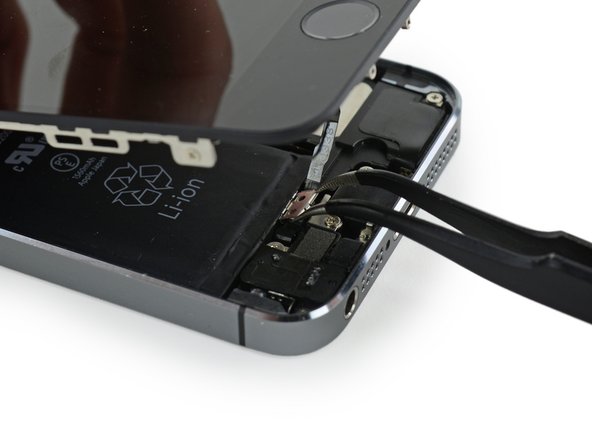

- When putting everything back together, don't forget to reinstall the Touch ID cable bracket. Slide the top part of the bracket between the battery and Touch ID connector, right in front of the metal tab. Then, make sure the bottom latches down snugly over the connector.
- Carefully slide the top of the bracket over the Touch ID cable connector, moving from left to right. Simple, right?
Gently position the bracket right over the connector, letting the edge with the 'leg' hold it up at a slight tilt. The other edge should rest between the cable connector and the nearby metal tab near the battery. Press a flat-edged spudger against the bracket and apply gentle downward force to click in the back and front clasps. Keep at it—you're making good progress!
Tools Used
Step 11


If the bracket isn't sitting flush, simply pop it off and give it another try by sliding it over the cable connector for a snug fit.
- While putting everything back together, gently press the flat end of a spudger to click the front part of the Touch ID cable bracket down over the connector. Keep it steady and make sure it snaps in securely.
Tools Used
Step 12


Make sure you're gently separating the cable connector from its socket—don't yank the whole socket up! That socket's attached to its own little cable, and it’s pretty easy to mess that up if you're not careful.
- Gently use the tip of your spudger to lift the home button cable connector out of its socket. Just a little nudge is all it needs, so go slow and steady.
Tools Used
Step 13


If you're in a tight spot, an unopened can of your favorite drink can do the trick to prop up the display.
- Once you've disconnected the connector, gently pull the home button assembly away from the back case, using the top of the phone as a hinge. Open up the display to around a 90º angle, then prop it up against something stable to keep it steady while you work. To keep everything in place and avoid putting strain on those delicate display cables, wrap a rubber band around the display to secure it during the process.
Step 14

- Grab your Phillips #000 screwdriver and remove the two 1.6 mm screws that are holding the metal battery connector bracket onto the logic board. Don't worry, you're making progress!
Step 15

- Pop off the metal battery connector bracket from your iPhone. It's just a quick move, so no need to stress.
Step 16

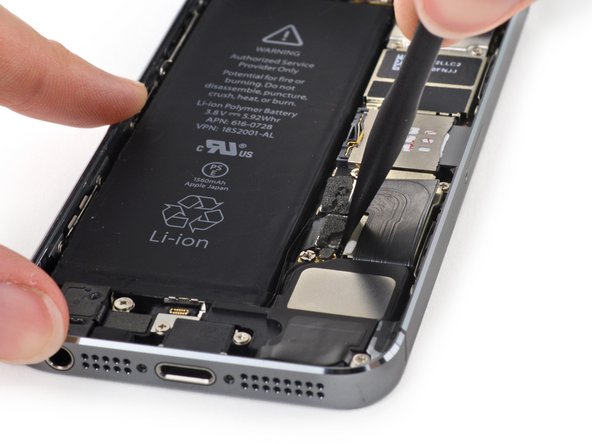
When you're prying up the battery connector, make sure to focus on the connector itself—don't go near the logic board socket. If you accidentally mess with the socket or the board, you could end up damaging the socket or nearby components. Just stay cool and gentle!
- Take the flat end of your trusty spudger and gently work it under the battery connector, lifting it up from its cozy spot on the logic board. Easy does it—no need to rush!
Tools Used
Step 17
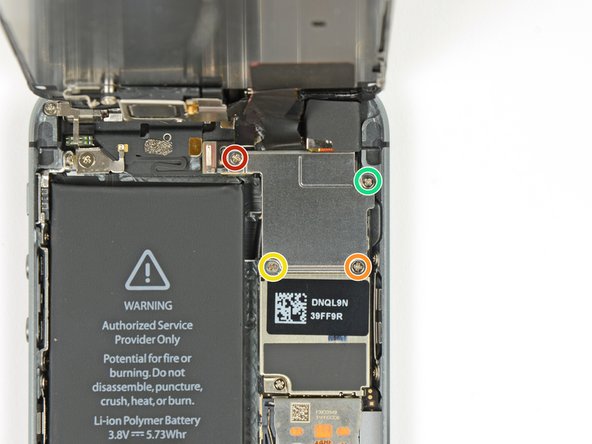
- Start by removing the screws holding the front panel assembly cable bracket onto the logic board: take out the 1.7 mm Phillips #000 screw, then the 1.2 mm Phillips #000 screw, followed by the 1.3 mm Phillips #000 screw, and finally, another 1.7 mm Phillips #000 screw. Keep these screws safe – they'll be needed later!
Keep your screws organized so you don’t mix them up during reassembly. Using the 1.3 mm screw or the wrong 1.7 mm screw in the bottom right hole can cause serious damage to the logic board, and your phone might not start up properly. And a quick tip — don’t force those screws in if they don’t go smoothly; if they resist, they might be the wrong size. Patience pays off!
This 1.7 mm screw usually doesn't stick to a magnetized screwdriver, so keep a close eye on it when you're taking it out—losing it would be easy!
Step 18

- Carefully detach the front panel assembly cable bracket from the logic board.
Step 19


- Grab your spudger or a fingernail and gently disconnect the front-facing camera and sensor cable to keep everything safe and sound.
Tools Used
Step 20
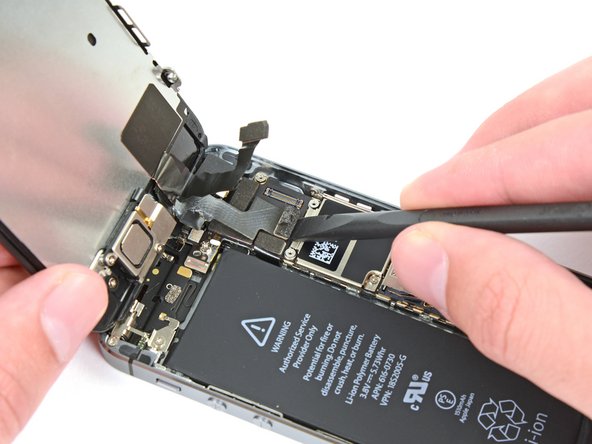

Ensure the battery is fully unplugged before messing around with the cables in this step. Safety first, then get to it!
- Gently disconnect the LCD cable connector. When you're putting your phone back together, the LCD cable might pop off the connector by itself. If that happens, you'll see some white lines or a blank screen when you turn it on again. No worries — just reconnect the cable and do a quick power cycle by disconnecting and reconnecting the battery. Easy does it, and your display should be back in action!
Step 21


- Next, gently disconnect the digitizer cable connector. It's a simple step, but just make sure to do it carefully to avoid any damage.
Step 22

- Gently pop the front panel off the back case, taking care not to force anything.
Step 23


- Start by unscrewing the tiny Phillips #000 screw that holds the home button cable in place. Easy does it!
- The screw is attached to the home button cable with a spring contact backing. When you're putting things back together, make sure the contact is in the right spot—nearest the LCD side of the screw.
- If your replacement part doesn’t come with the screw and spring contact, don't stress! Just transfer them to the new cable.
Step 24


- Gently fold the home button cable down, keeping it clear of the home button bracket.
Step 25

- Unscrew the two 1.4 mm Phillips #000 screws holding the home button bracket in place. You got this!
Step 26

- Take off the home button bracket from the display assembly. Simple as that!
Step 27


Hold off on removing the home button for now – it's still snugly attached to the front panel assembly.
The home button cable is stuck on with a bit of mild adhesive, nothing too tough to handle.
- Carefully slide the spudger tip underneath the home button cable assembly.
- Gently ease the spudger further under the cable to detach it from the front panel assembly.
Tools Used
Step 28


Don't push the home button all the way through—just lift a corner enough so you can wedge in a spudger and start prying it up gently.
This membrane is super delicate. If you think you're about to tear the button, give it a little heat and try again—no stress!
- If there's tape covering the home button on the front of your cracked panel, gently peel it away so you can see what's underneath.
- Carefully lift the top left corner of the home button, nudging it away from the front panel. Easy does it—you're making space for the next steps!
Tools Used
Step 29


- Carefully peel the home button off the display, using a spudger to gently pry it the rest of the way.
Tools Used
Step 30

- Carefully detach the home button assembly from the front panel.
Step 31

- The screen is staying put, but we're not done yet.
- If your new screen is missing any parts that are still attached to the old assembly, no worries—just follow this guide to transfer them over to the fresh new screen.
- If your replacement screen came with any extra protective plastic layers that weren't on the original, be sure to peel them off before putting everything back together.